
Finding your way around
Three views and one rule: whatever you are looking at, today is one tap away. A day is a list of cards in the order things happen, each with its picture, its time and its colour — no grid of hours, no line creeping across it. The week is seven columns, and the month is a grid of photos.
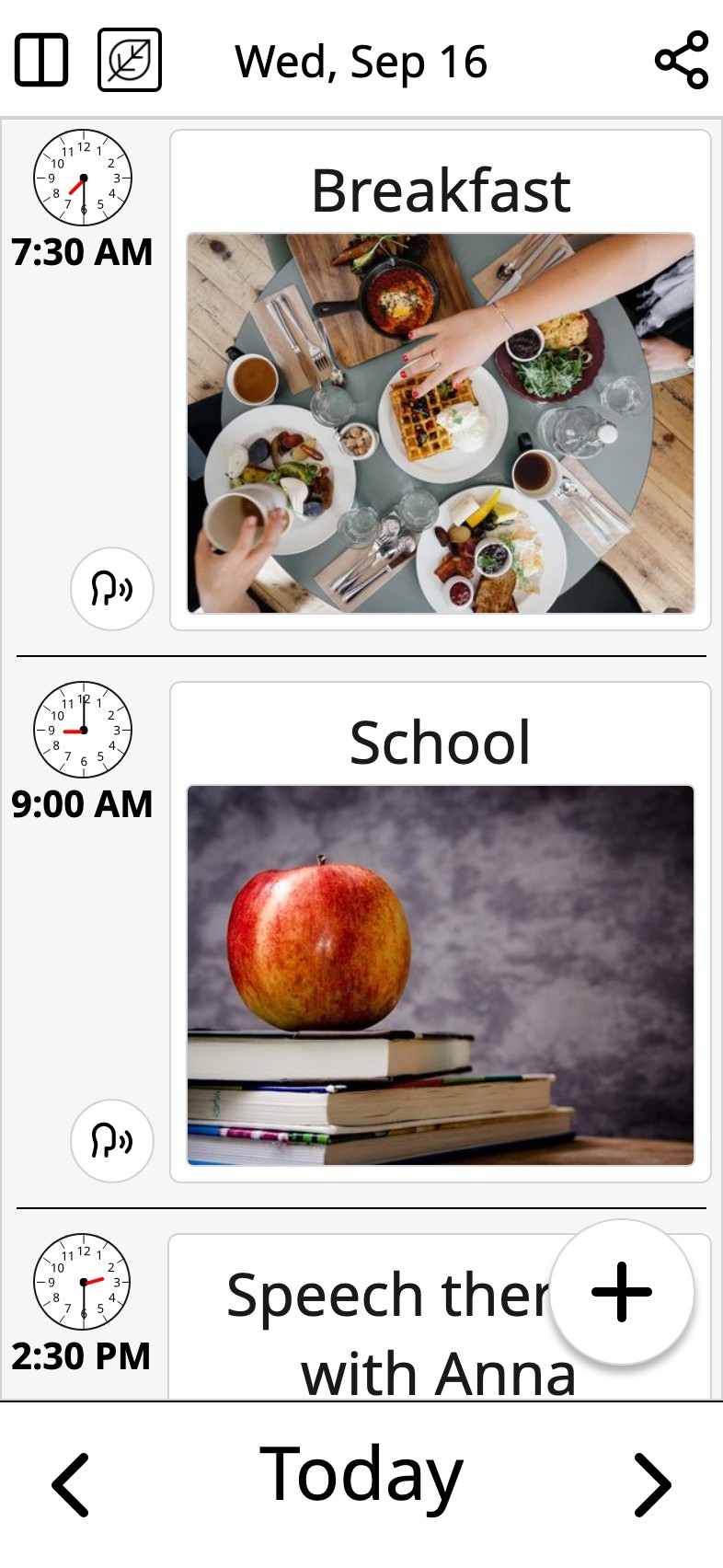
What the buttons do
Two of them sit at the top left of the day view: one opens the week, one opens the month. The month button is not an icon at all — it wears that month's own picture.
- Week Opens the week. It sits on the day view and on the month view.
- Month Opens the month — and wears that month's own picture, so it changes as the year goes on.
- Share Sends the day or the week to someone as a picture.
- Planning board On the week view: the week as columns you can drag cards between.
- Settings On the month view, top right.

The week
Seven columns in seven colours, each day's cards under its own header. On a tablet the whole week is on one screen, which is the view most families leave open.
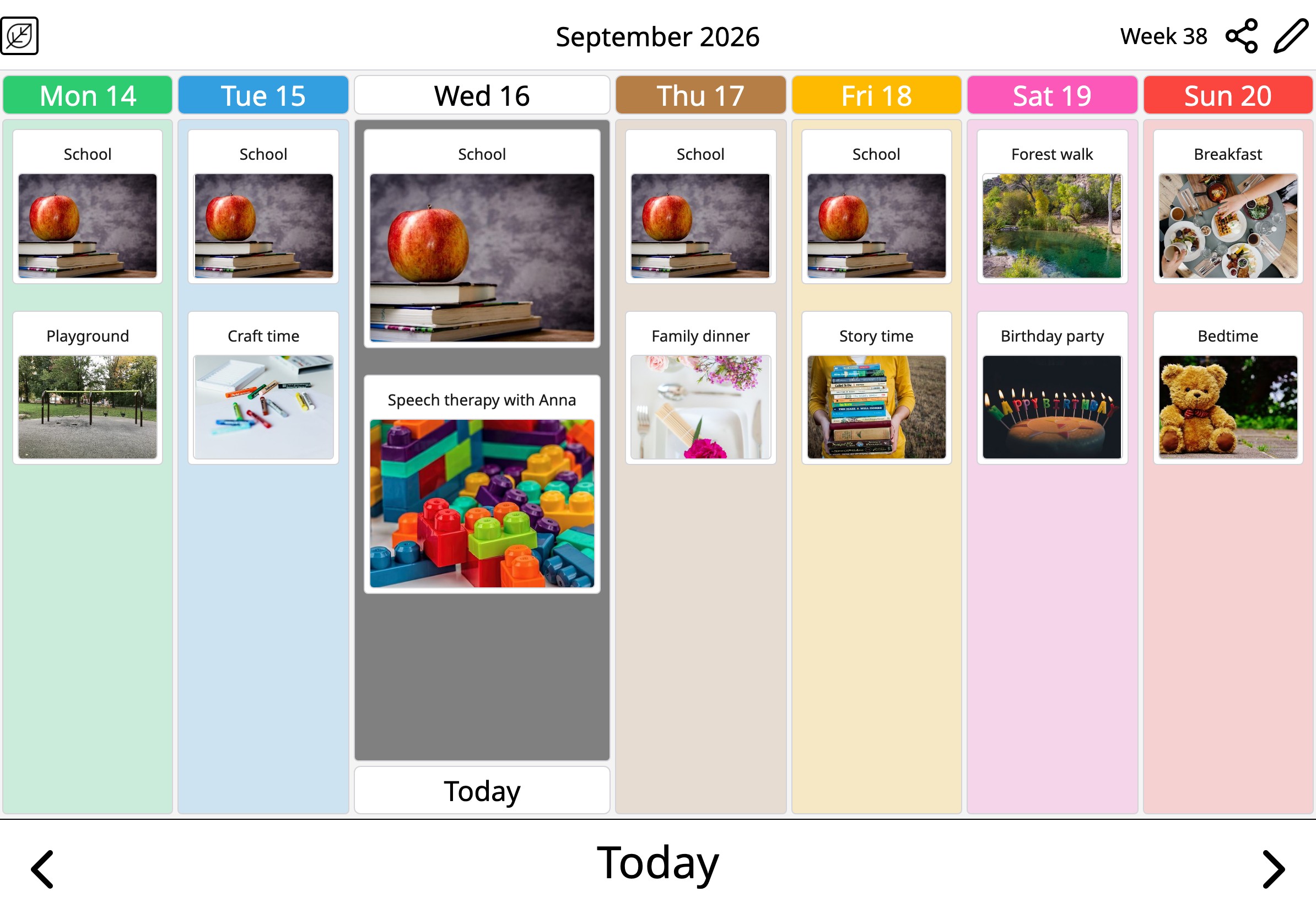
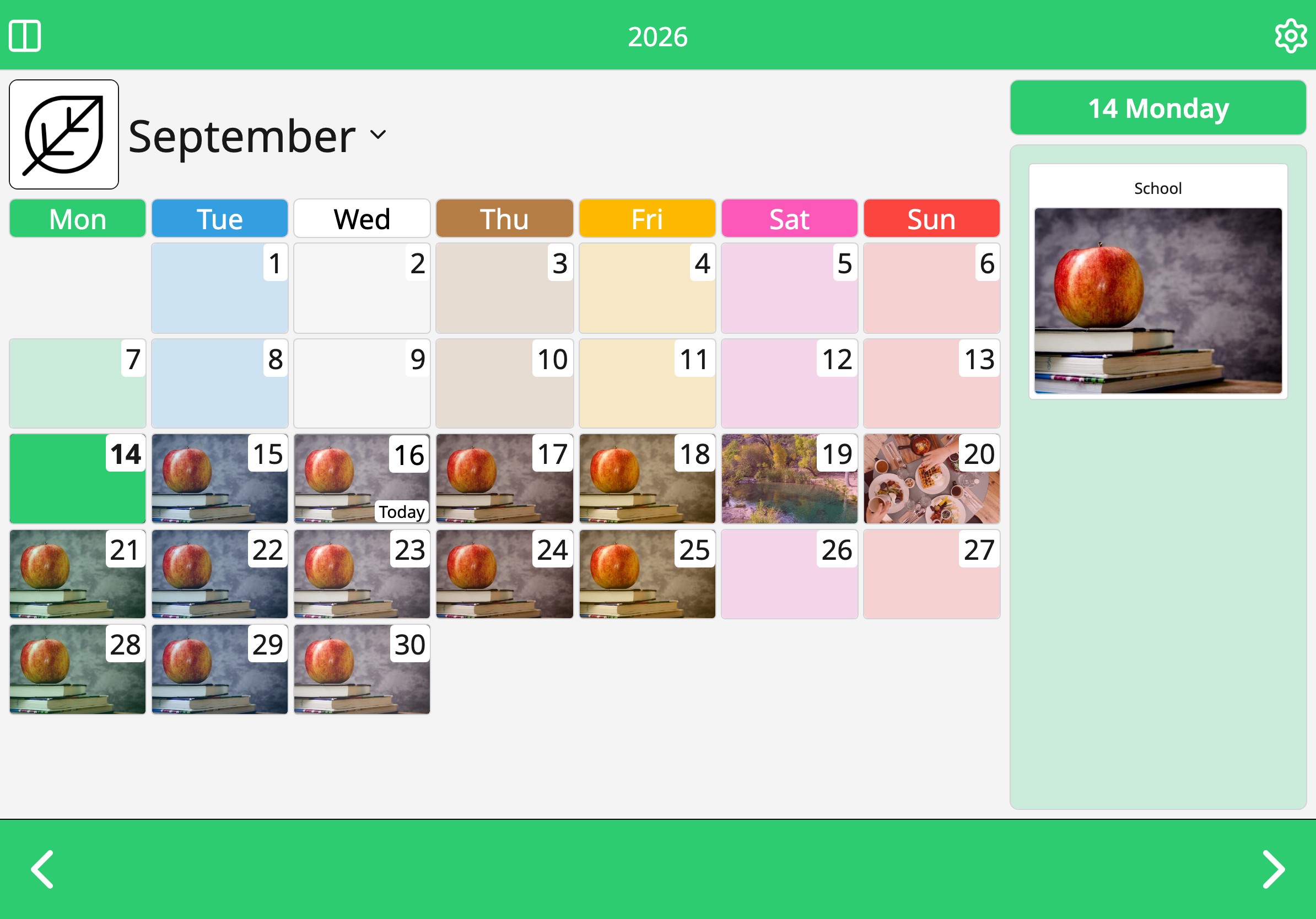
The month is the date picker
Each day shows its first photo, so a birthday party or a trip is visible weeks ahead. Tap a day to open it; on a tablet held sideways, the month and that day sit next to each other.
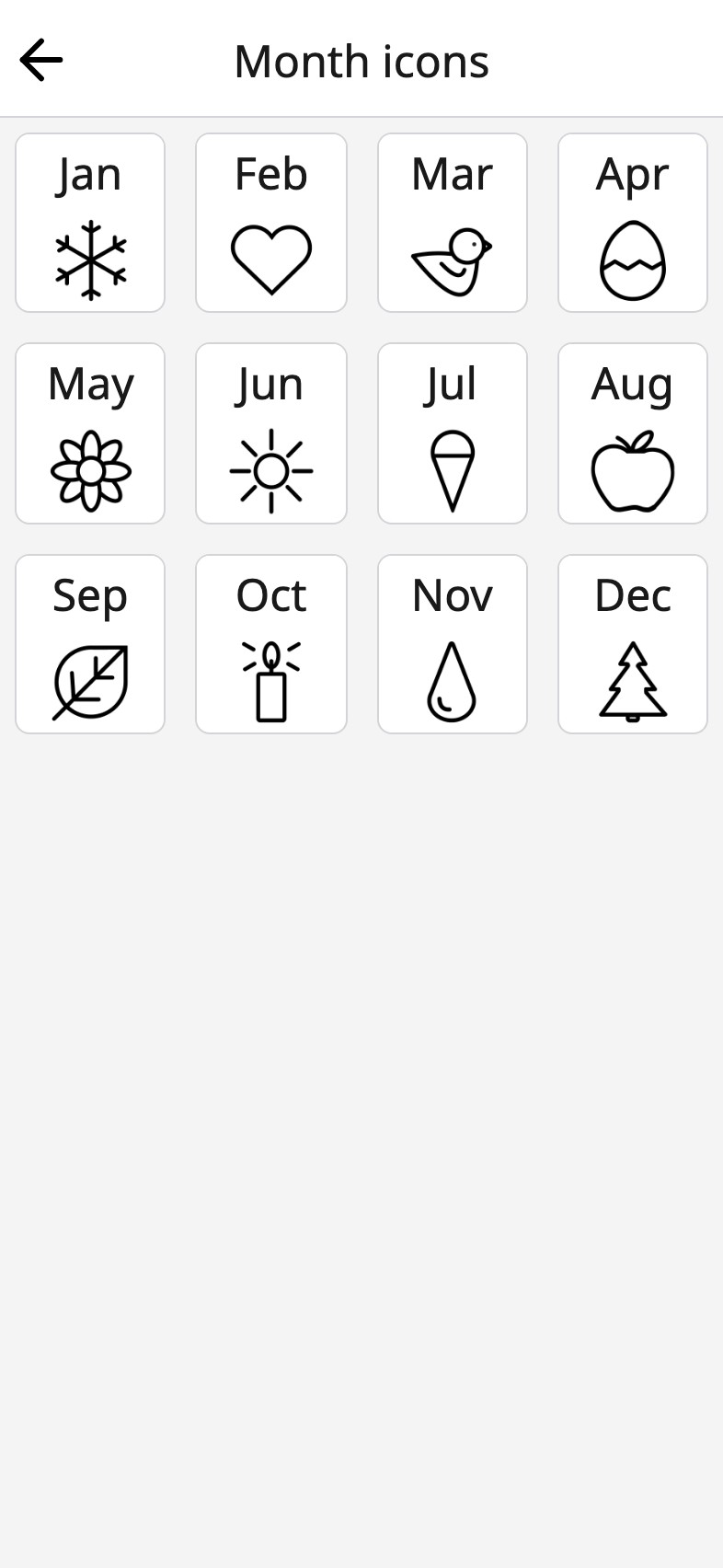
Every month has its own picture
January is a snowflake, June is a sun. In Settings you can replace any of them with a photo or a drawing of your own — the summer cottage for July, the school building for August — and that picture becomes the month button in the top bar.
Back, forward, and home
The bottom bar steps through time and brings you back. What it steps by depends on the view you are in, and the middle of the bar says Today while you are on today — on the week view, all week. The month view has no Today label at all; there the middle stays empty until you leave this month.
- Back A day on the day view, a week on the week view, a month on the month view. Swiping does the same, and can be switched off.
- Home Appears the moment you are away from now, and takes you back. On the day view that is any day but today; on the week view any week but this one; on the month view any month but this one.
- Forward The same step the other way.
A day with no hour grid is a deliberate choice: the next thing is the next card, and nothing on the screen asks the reader to tell the time first. The clock is there for whoever is learning it.
Frequently asked
Which view opens when I start the app?
The one you choose in Settings, under Starting view. The day is the default, because most days that is the question: what happens today.
Is there a done button, or a way to tick things off?
No. Moi Calendar shows the week as it is; it does not keep score. The day moves on when the next card comes.
Can the week start on Sunday?
Yes. Settings has First weekday: Monday, Saturday or Sunday. The week view and the month follow it.
Your week, in pictures